Departmental Standards
Company-Wide
eCornell Styleguide & Branding
Cornell University Branding
Writing and Editing Style Guide
Faculty and Expert Naming Conventions in Courses
Cornell School and Unit Names
Tips for Campus Engagements
LSG
Legal Policies
CSG
Creative Services (CSG) Handbook
Updating Wrike Due Dates
Photography Style Guide
eCornell Mini Visual Style Guide
The Pocket Guide to Multimedia Design Thinking (*as It Pertains to Your Job Here)
Administrative
LSG Meeting Recordings and Notes
Sending Faculty Sign-Off Forms in Adobe Sign
Weekly Faculty Status Emails
Animation/Motion Design
Instructional Design
AI in Instructional Design: Principles and Approach
Required Course Elements
The Pocket Guide to Instructional Design Thinking at eCornell
Adding AER to Canvas
Grading
D&D Newsletter
LSGN Newsletter December 2022
LSG Newsletter (LSGN) - February 2024
LSG Newsletter (LSGN) - March 2022 Edition
LSG Newsletter (LSGN) - December 2023
LSG Newsletter (LSGN) - October 2021 Edition
LSG Newsletter (LSGN) - June 2022 Edition
D&D Newsletter November 2024
LSG Newsletter (LSGN) - August 2022 Edition
LSG Newsletter (LSGN) - June 2023
LSGN Newsletter April 2023
LSG Newsletter (LSGN) - February 2022 Edition
LSG Newsletter (LSGN) - October 2022 Edition
LSGN Newsletter February 2023
LSGN Newsletter March 2023
D&D Newsletter September 2024
LSG Newsletter (LSGN) - August 2023
LSG Newsletter (LSGN) - March 2024
LSG Newsletter (LSGN) - April 2022 Edition
D&D Newsletter - August 2024
LSGN Newsletter January 2023
LSG Newsletter (LSGN) - October 2023 article
LSGN Newsletter (LSGN) - April 2024
LSG Newsletter (LSGN) - November 2021 Edition
D&D Newsletter February 2025
LSG Newsletter (LSGN) - January 2022 Edition
D&D Newsletter April 2025
LSG Newsletter (LSGN) - July 2022 Edition
LSG Newsletter (LSGN) - September 2022 Edition
Course Development
Image Uploads for Inline Projects
How to Install the Firefox Canvas Utilities Extension
Revising a Course/ Creating a Redux Version/ Course Updates
Creating a Perma Link With Perma.cc
Course Content Deletion Utility — Removing All Course Content
Course Names
Requesting High Resolution Video Uploads
Technical Talking Points Template
Writing Discussions: Guidelines for IDs
Online Resources in Credit-Bearing Courses
Hiring Actors for an eCornell Project
Marketing
Operations
Tech
Master Course Template Differences (8675309s)
FeedbackFruits Overview
Non-CSG File Uploads
Mentored Learning Conversion Process and Resources
Doc-Based Master Course Template and Standards (8675309-DOC)
Pedagogical Guidelines for Implementing AI-Based Interactives: AER
New Canvas Accounts for Faculty Partners
Coding Master Course Template and Standards (8675309-CODE)
FeedbackFruits Implementation
Practice Quiz Standards
Hero Image
Platform Training
Administrative Systems
ADP
Google Drive
Downloadables Process
Embed a Document From Google Drive
Adding Google Links to Canvas
File Naming and Storage Convention Standards
Google Drive for Desktop Instructions
Storing Documents in Multiple Locations
Wrike
Wrike System Fundamentals
Using Search in Wrike
Field Population
1.0 to 2.0 Wrike Project Conversion
Blocking Time Off in Work Schedule (Wrike)
Wrike Custom Field Glossary
Wrike "Custom Item Type" Definitions
How to Create a Private Dashboard in Wrike
Using Timesheets in Wrike
Importing Tasks into a Wrike Project
Wrike Project Delay Causes Definitions
Setting OOO Coverage for Roles in Wrike
How to Change a Project's Item Type in Wrike
How to Create a Custom Report in Wrike
@ Mentioning Roles in Wrike
Automate Rules
Using Filters in Wrike
Managing Exec Ed Programs in Wrike
External Collaborators
Wrike for External Collaborators: Getting Started
Wrike for External Collaborators: Views
Wrike for External Collaborators: Tasks in Detail
Wrike Updates
New Experience Update in Wrike
Wrike Course Development Template 2.0 - What's New
Wrike - Course Development Template 3.0 Release Notes
Wrike Process Training
Course Development & Delivery Platforms
Canvas
Development
Adding Custom Links to Course Navigation
Adding Comments to PDFs from Canvas Page Links
Setting Module Prerequisites and Requirements in Canvas
Canvas Page Functionality
Create a New Course Shell From 8675309
Using LaTeX in Canvas
Search in Canvas Using API Utilities - Tutorial
Reverting a Page to a Previous Version
Student Groups
Create Different Canvas Pages
Importing Specific Parts of a Canvas Course
Canvas HTML Allowlist/Whitelist
Understanding Canvas Customizations/Stylesheets
Operations
Discussion Page Standards
How to import a CU course containing NEW quizzes
Canvas LMS: NEW Quiz compatibility
Faculty Journal
Course Content Style Guide
Click-To-Reveal Accordions in Canvas
Course Maintenance Issue Resolution Process
Meet the Experts
Codio
Codio Operations
Managing Manually Graded “Reflect and Submit” Codio Exercises
Codio Structure and Grading for Facilitators
Premade Codio Docs for Ops & Facilitators
Codio Remote Feedback Tools for Facilitators
Developers
Development Processes
Creating a New Codio Course
Creating a New Codio Unit
Integrating a Codio Course into Canvas Using LTI 1.1
Embedding a Codio Unit into Canvas
Setting Up the Class Fork
Jasmine Autograde Unit Testing
Setting Up the Class Fork (LTI 1.3)
AWS S3 Cache Management for Codio
R Studio - Exclusion List for R Code
Mocha/Selenium Autograding
Starter Packs in Codio
Configuring Partial Point Autograders in Codio
Launch a Jupyter Notebook from VM
AI Extensions
Program-Specific Developer Notes
Codio Functionality
Jupyter Notebooks
Jupyter Notebooks - nbgrader tweaks
Jupyter Notebooks Style Guide
Creating NbGrader Assignments
Adding Extensions to Jupyter Notebooks
Setting up R with Jupyter Notebooks
Change Jupyter Notebook Auto Save Interval
How to Change CSS in Jupyter Notebook
RStudio in Codio
How To Centralize the .codio-menu File to One Location
Codio Fundamentals for LSG
Using the JupyterLab Starter Pack
Using Code Formatters
Using the RStudio Starter Pack
Conda Environments in Codio
Updating Codio Change Log
Codio Basics: Student Support
eC Facilitator Guide to Codio
Migrating to Updated Codio Courses
Qualtrics
Ally
Adobe
Other Integrations
Pendo Overview
How to Add VitalSource eBooks in Canvas
Enabling Zoom/"Live Sessions" in a Course
Pendo Guide Creation
H5P
Modifying Subtitles in H5P Interactive Videos
Embedding H5P Content Into Canvas
Troubleshooting H5P Elements in Canvas
Inserting Kaltura Videos into H5P Interactive Videos
Adding Subtitles to H5P Interactive Videos
S3
BugHerd
Instructional Technologies & Tools Inventory
Canvas API Utilities
Getting started with the MOP Bot
eCornell Platform Architecture
HR & Training Systems
Product Development Processes
Accessibility
What Is Accessibility?
What Is Accessibility?
Accessibility Resources
Accessibility Considerations
Accessibility Support and Assistive Technology
Structural Accessibility
Accessibility Design and Development Best Practices
Accessible Images Using Alt Text and Long Descriptions
Accessible Excel Files
Accessibility and Semantic Headings
Accessible Hyperlinks
Accessible Tables
Creating Accessible Microsoft Files
Mathpix: Accessible STEM
Design and Development General Approach to Accessibility
Integrating Content Authored by a Third Party
Planning for Accessible Tools
Accessibility Considerations for Third Party Tools
Studio Accessibility
Designing for Accessible Canvas Courses
Accessibility: Ongoing Innovations
Course Development
Planning
Development
0. Design
1. Codio Units
1. Non-Video Assets
3. Glossary
4. Canvas Text
4. Tools
4. Tools - Wrike Task Definitions
3. Review And Revise Styled Assets
ID/A to Creative Team Handoff Steps
General Overview of Downloadables Process
Course Project: Draft and Final
Excel Tools: Draft and Final
eCornell LSG HTML Basics
1. Non-Video Assets - Wrike Task Definitions
2. Video
Multifeed Video
2. Video (Standard) - Wrike Task Definitions
Studio Tips
Tips for Remote Video Recording Sessions
Who to Tag for Video Tasks
3. Animation
Motion Contractor Guide for IDAs / IDDs
3. Animation - Wrike Task Definitions
2. Artboard Collab Doc Prep
6b. Motion Design Review and Revise
Who to Tag for Animations Tasks
3. Artboard Collab Process Walkthrough
DRAFT - FrameIO Process Walkthrough
Requesting / Using Stock Imagery (Getty Images and Shutterstock)
3. Ask the Experts
5. On-Demand Conversion
5. Review
1. Prep Course for Reviews
3. Implement Creative Director Edits
3. Implement IDD Edits
4. CSG - Revise Tools Export 1
5. Conduct Faculty Review
6. Implement Faculty Edits
7. Conduct Technical Review of Course (STEM-only)
Technical Student Experience (Tech SE) Review Process
2. Conduct IDD or Sr ID Review
6. Alpha
6. Alpha - Wrike Task Definitions
Alpha Review Process
Prepare a course for Alpha review
Schedule & Conduct Alpha Triage Meeting
7. QA
1. Prep Course for QA
2. Copy Edit Captions
2. Copy Edit Course & Files
4. Conduct Content QA of Course
4. Final Creative Review and Export
Adding Chat With Tech Support to Course Navigation
5. Implement QA Edits
Working With Video Captions That Contain Special Characters
Copy Edit Captions in SubPLY
Creating a Course Style and Settings Guide
Copy Editing Content in Frame.io
1. Complete Dev to QA Checklist
Copy Edit Captions in 3Play
Tag a Video for Transcription by 3Play
Course QA Checklists
8. Deployment
8. Deployment - Wrike Task Definitions
1. Finalize Master Version of Course
2. Create & Add Course Transcript (CT) to Course
Replace a Master -M With a Redux Version of the Course
Adding Facilitator Course Review Attestation to the Training Course
3. Create -T (Training Course) and Associate With Master Blueprint
Canvas Blueprint Course Functionality
Project Management in Wrike
Managing Project Reporting in Wrike
Managing Task Needs/Schedule in Wrike
Adding Tasks
Comments and Communication
Statuses
Updating Task Start and Due Dates
Predecessors
Durations
Rollups
Calculating Project Schedule by Deadline in Wrike
Creating Course Project Plans in Wrike
Setting Custom Capacity for Resources
Customizing Effort in a New Project Plan
Marking Projects Complete in Wrike
How to Set Up Workload Charts to Track Effort in Wrike
For-Credit Considerations
1-Sheet Population
Post-Development
AI Simulations
Program Facilitation & Operational Guidelines
Data Science
Facilitator Resources
Canvas Navigation
How Do I View Previous Courses I Have Taken or Facilitated?
Why Am I Receiving Duplicate Canvas Emails?
How Do I Send Students Nudges from the Gradebook?
Adding Events to the Course Calendar
Navigating Canvas and the Dashboard
Enhanced Discussion Boards [2026]
How Do I Edit My Canvas Profile?
Utilizing the AI-Enhanced Learners Feedback Tool
Send Students a Direct Message on Canvas
Adding Notes to Canvas Gradebook
Overview of 2024 Changes- Course Layout and Structure
How Can I Update My Canvas Notification Preferences?
Ursus Navigation
How Do I Access My Offer in Ursus?
How Do I Request Time Off (Blackout Dates)?
Adding Or Editing Ursus (Facilitator Portal) Profile
How Can I Request to Learn More Courses?
Live Sessions
Set up Live Sessions with the Facil Tool
Enabling Student Use of Closed Captioning in Zoom
When Should I Schedule My Live Sessions For?
Changing Live Session Date and Time After Created with Facil Tool
Help! I Need to Reschedule a Live Session
Live Session Information page
Combining Live Sessions with Facil Tool
Course Set-Up
What Do I Need to Do to Make Sure My Course is Set Up Correctly?
Course Set Up: Getting Ready for Live Sessions
Recording and Posting a Welcome Video
Course Set Up: When can I begin to edit my course?
Automated Nudge Feature Guide
Course Set Up: Reviewing Due Dates
Course Set Up: Reviewing Announcements
Blurring Background During Video Feedback with the Speedgrader
How Do I Customize My Course Sections?
Course Announcements and Messages Templates
Facilitator Focus
Zoom and other Technical Support
How Do I Set Up My Zoom Account?
Support Resources for Facilitators
Live Session/Zoom Trouble Shooting Guide & Technical Readiness
How to Upload to Video On-Demand (VOD)
Joining the Facilitator Community Hub via Microsoft Teams
Reporting Spam/Phishing
Activating/Re-activating Duo Mobile (Two Factor Authentication)
Common Access/Login Errors
Student Survey FAQs
How Do I Save and Refer Back to Zoom Recordings?
How Do I Find My Personal ID Meeting link in Zoom?
Benefits as an eCornell Employee
Taking Courses as a Student
Do I Have Access to Microsoft Office as a Cornell Employee?
Professional Development Benefit
Student Success
Extensions and Retakes
Policies and Navigation Resources for Students
Understanding and Addressing Instances of Plagiarism
Understanding and Addressing Use of AI
Help! My Students Can't View a Video Within My Course
Identifying Learner Story & Testimonial Opportunities
Symposium Access Extension- Fall 2025
Students enrolled through special groups: Corporate and VA
Unique Circumstances for Student Extensions and Retakes
Communicating with Students via Canvas
Can I Provide Students with a Letter of Recommendation?
Support Resources for Students
Help! My Student is Having a Hard Time Uploading a Video
Unique Student Situations
I Have a Student Requesting Accommodations- How Should I Proceed?
Canvas Mobile App
Messaging Students via the Canvas Mobile App
Setting up and Navigating the Canvas Mobile app
Setting up Push Notifications on Canvas Mobile
Canvas App Features for eCornell courses
New Facilitator Onboarding and Quick References
Quick reference: Systems and Accounts we use at eCornell
Quick reference guide: Key eCornell Personnel
Setting up Email Forwarding
Facilitator Onboarding at eCornell
Why Do I Have Multiple eCornell email and Canvas Accounts?
How do I Log Onto Canvas and Access eCUFT101?
How Do I Add eCornell to My Email Signature?
Training Course Review & Facilitation Authorization
What to Expect During Live Shadowing Experience
Facilitator Expectations and Grading Help
Quick Reference: Sort assignments in the Speedgrader
Rubrics for Effective Facilitation
Adding an Attempt to a Course Project
Changes in Grading Scheme: Incomplete/Complete and 75% to 85%
New (Embedded/Inline Format) How do I grade Course Projects?
Navigating the Gradebook and Accessing the Speedgrader
Adding Notes to the Canvas Gradebook
How do I Grade Quizzes?
(Old format) How Do I Grade Course Projects and Add Annotations?
Is There an Answer Key for my Course?
How to Monitor and Promote Student Progress
How Do I Grade Discussions?
How Quickly Do I Need to Provide Grading to Students?
Payroll and the Monthly Scheduling Process
Codio References
Codio Quick Resources
Codio Reference: Checking for Completion Status
Codio Reference: Manually Graded Exercises
Manually Graded “Reflect and Submit” Codio Exercises
Codio Reference: Embedded quiz questions (H5P)
Codio Reference: Finding Solution Code in Codio Courses
Codio Remote Feedback Tools
Codio Reference: Ungraded exercises
Codio Reference: Autograded Exercises
Archived
- All Categories
- Program Facilitation & Operational Guidelines
- Facilitator Resources
- Course Set-Up
- Automated Nudge Feature Guide
Automated Nudge Feature Guide

Automated Nudge Feature Guide
Why Automated Nudge messages?
Automated Nudge messages are designed to:
- Support students who may be falling behind by sending personalized outreach messages
- Reduce student message fatigue by replacing broad course-wide reminders with targeted communications
- Reduce facilitator workload by automating the identification and outreach process for students who may need support
How does the Automated Nudge feature identify students to nudge? And how many messages does it send?
Based on student activity and communication history, up to two automated messages may be sent during a course.
Before sending messages, Automated Nudge evaluates two criteria: (1) has the student submitted the required assignments, and (2) has the student communicated with the facilitator?
Checkpoint | Criteria |
One Week In (sent ~1 week after the course begins) | Messages will be sent to students who:
|
Almost There (sent when the course reaches ~75% of its duration) | Messages will be sent to students who:
|
What is the text of the Automated Nudge messages?
There are 7 message variations for each checkpoint (14 total). Messages are personalized with the student's name, course dates, and facilitator signature. The system rotates message versions to avoid sending the same message repeatedly.
Example 1: “One Week In” message:
Hello [Student First Name],
I hope you're doing well! I noticed we haven't seen your assignment submissions yet, and since we're a week in, I wanted to reach out. There's still plenty of time to complete the coursework before [course_end_Date].
You can find all assignment deadlines and track your progress through the course home page or the Grades pages.
Please don't hesitate to let me know if you're facing any challenges or need guidance getting started – I'm here to support your success!
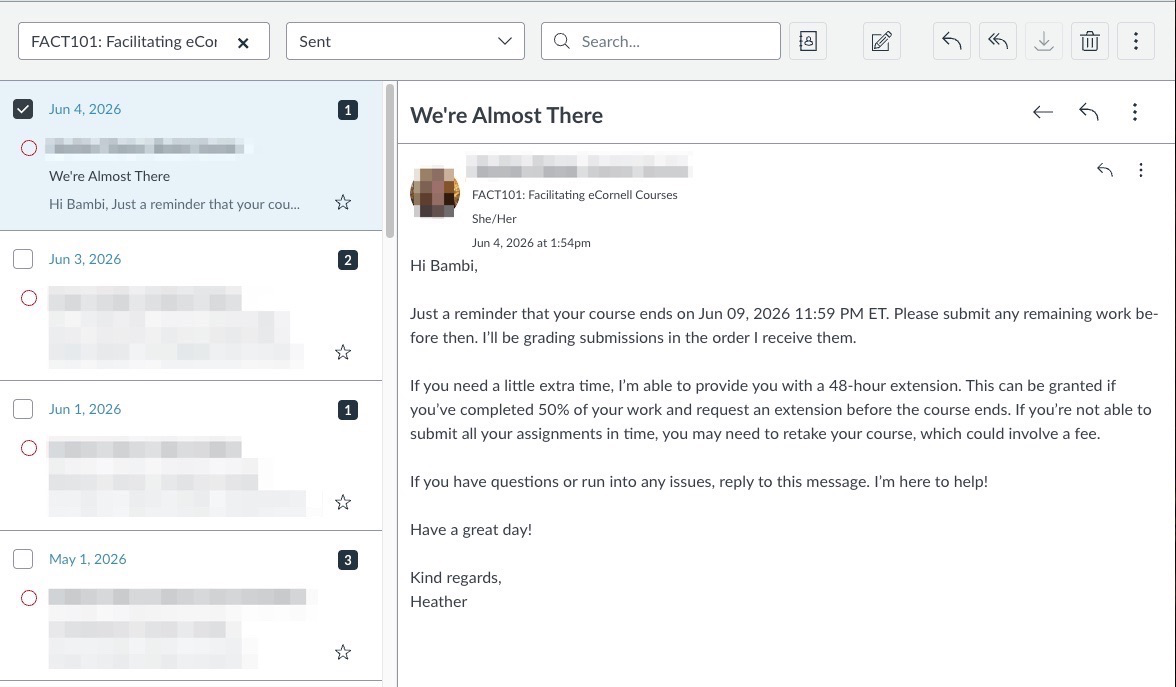
Example 2: “We’re Almost There” message:
Hello [Student First Name],
I hope you're having a good week! I wanted to remind you that your course completion deadline is approaching on [Course End Date and Time].
Please submit all remaining work before the deadline - I will be grading assignments in the order I receive them.
You may request a 48-hour extension before the course ends if you've completed 50% of the work. Without an extension, incomplete coursework may require a course retake (additional fees may apply).
Please reach out if you need any clarification or support in completing your assignments!
Future enhancements to the messages may include a list of assignments that are past due and their due dates.
Why are messages sent from the facilitator’s Canvas inbox?
Through experimentation, we have learned that students are more likely to read and act upon personalized messages coming from a facilitator than to generic messages sent by Canvas.
How can I see which students received nudges?
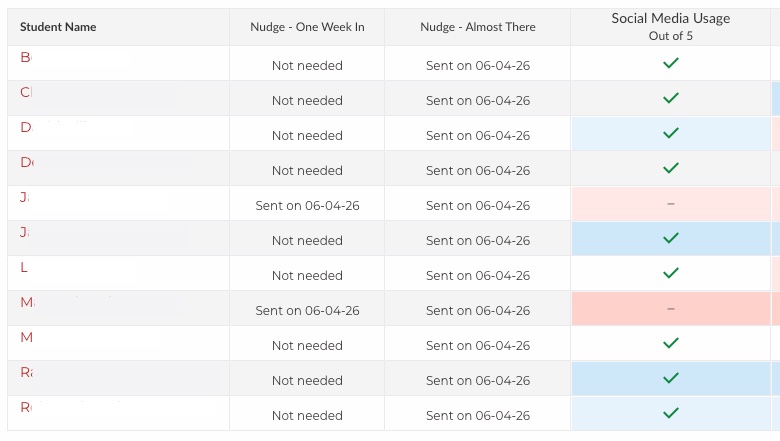
Once the Automated Nudge feature has been activated, the Canvas gradebook will contain two new columns: one for the “One Week In” message, and another for the “Almost There” message. These columns will contain the following information:
Blank: Automated Nudge has not yet run
Sent on (dd/mm/yy): A nudge has been sent on a particular date
Skipped: There has been recent communication between the facilitator and the student
Not needed: Assignments are up to date; a nudge is not needed
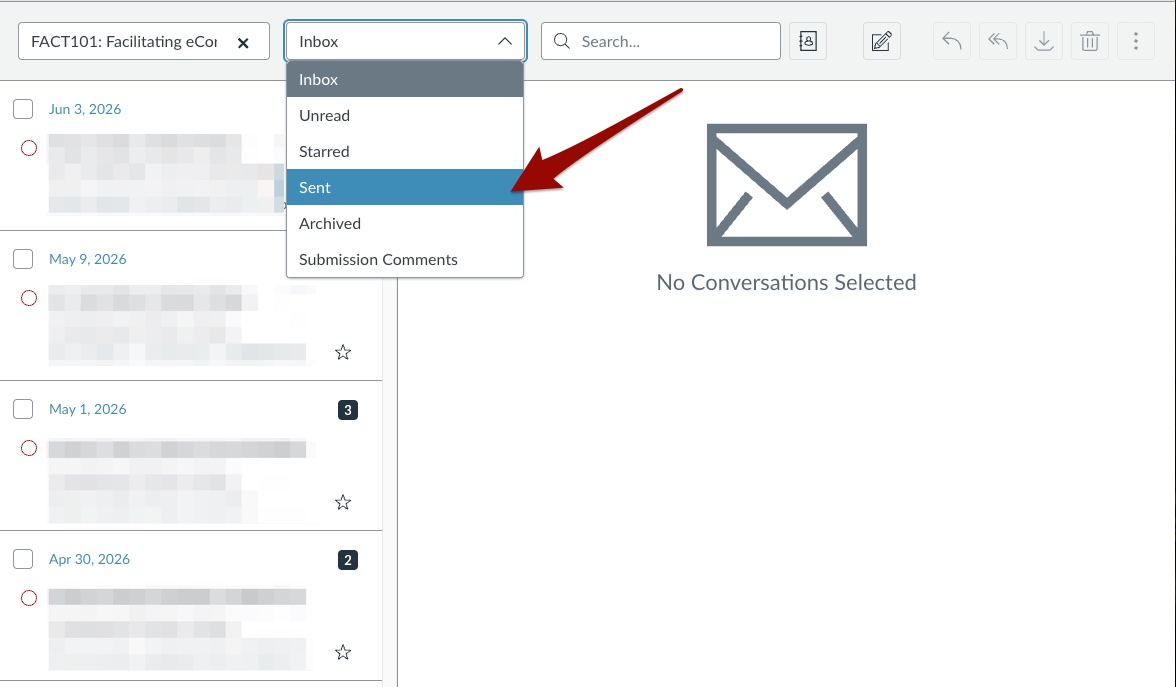
Additionally, all messages are captured in the facilitator’s Canvas outbox; facilitators can access their sent messages from their inbox by selecting “Sent” from the drop-down menu at the top of the page.
Selecting a message from the left-hand column will open the message, where a facilitator can view the message text as well as the date and time the message was sent.
How do I activate the Automated Nudge feature?
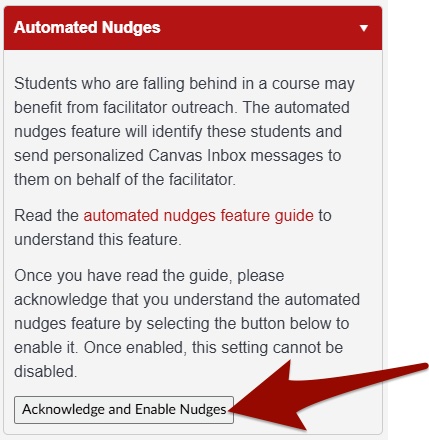
During course setup, open the Facil tool and navigate to the “Automated Nudges” drop-down. After reading the text and reviewing the automated nudges feature guide, select the button labeled “Acknowledge and Enable Nudges”.
Can I change the text of the messages?
This capability currently is not available; it may be developed in a future release of the Automated Nudge feature. Please note that only plain text is available in the messages.
Will all courses I facilitate use the Automated Nudge feature?
Most 2- and 3-week courses will use the feature. Special courses, such as Dedicated Sections, Mentored Learning, Executive Masters, and select courses with uncommon features will be excluded from Automated Nudge messages.
To be certain, you should access the gradebook for your course and look for the two “Nudges” columns (see “How can I see which students received nudges” above). If the columns are present, the feature is enabled for your course.
How does this change my facilitation practices?
Once a facilitator verifies via the gradebook that the Automated Nudge feature is active for a course, they no longer need to manually identify students who are falling behind and send manual nudges.
If the Automated Nudge columns are not present in the gradebook, the facilitator should continue to send manual nudges.
Do Automated Nudge messages replace all facilitator outreach?
No. The Automated Nudge feature only addresses specific milestones and criteria. Facilitators should continue to provide personalized support and outreach when appropriate.