Departmental Standards
Company-Wide
eCornell Styleguide & Branding
Cornell University Branding
Writing and Editing Style Guide
Faculty and Expert Naming Conventions in Courses
Cornell School and Unit Names
Tips for Campus Engagements
LSG
Legal Policies
CSG
Creative Services (CSG) Handbook
Updating Wrike Due Dates
Photography Style Guide
eCornell Mini Visual Style Guide
The Pocket Guide to Multimedia Design Thinking (*as It Pertains to Your Job Here)
Administrative
LSG Meeting Recordings and Notes
Sending Faculty Sign-Off Forms in Adobe Sign
Weekly Faculty Status Emails
Animation/Motion Design
Instructional Design
AI in Instructional Design: Principles and Approach
Required Course Elements
The Pocket Guide to Instructional Design Thinking at eCornell
Adding AER to Canvas
Grading
D&D Newsletter
LSGN Newsletter December 2022
LSG Newsletter (LSGN) - February 2024
LSG Newsletter (LSGN) - March 2022 Edition
LSG Newsletter (LSGN) - December 2023
LSG Newsletter (LSGN) - October 2021 Edition
LSG Newsletter (LSGN) - June 2022 Edition
D&D Newsletter November 2024
LSG Newsletter (LSGN) - August 2022 Edition
LSG Newsletter (LSGN) - June 2023
LSGN Newsletter April 2023
LSG Newsletter (LSGN) - February 2022 Edition
LSG Newsletter (LSGN) - October 2022 Edition
LSGN Newsletter February 2023
LSGN Newsletter March 2023
D&D Newsletter September 2024
LSG Newsletter (LSGN) - August 2023
LSG Newsletter (LSGN) - March 2024
LSG Newsletter (LSGN) - April 2022 Edition
D&D Newsletter - August 2024
LSGN Newsletter January 2023
LSG Newsletter (LSGN) - October 2023 article
LSGN Newsletter (LSGN) - April 2024
LSG Newsletter (LSGN) - November 2021 Edition
D&D Newsletter February 2025
LSG Newsletter (LSGN) - January 2022 Edition
D&D Newsletter April 2025
LSG Newsletter (LSGN) - July 2022 Edition
LSG Newsletter (LSGN) - September 2022 Edition
Course Development
Image Uploads for Inline Projects
How to Install the Firefox Canvas Utilities Extension
Revising a Course/ Creating a Redux Version/ Course Updates
Creating a Perma Link With Perma.cc
Course Content Deletion Utility — Removing All Course Content
Course Names
Requesting High Resolution Video Uploads
Technical Talking Points Template
Writing Discussions: Guidelines for IDs
Online Resources in Credit-Bearing Courses
Hiring Actors for an eCornell Project
Marketing
Operations
Tech
Master Course Template Differences (8675309s)
FeedbackFruits Overview
Non-CSG File Uploads
Mentored Learning Conversion Process and Resources
Doc-Based Master Course Template and Standards (8675309-DOC)
Pedagogical Guidelines for Implementing AI-Based Interactives: AER
New Canvas Accounts for Faculty Partners
Coding Master Course Template and Standards (8675309-CODE)
FeedbackFruits Implementation
Practice Quiz Standards
Hero Image
Platform Training
Administrative Systems
ADP
Google Drive
Downloadables Process
Embed a Document From Google Drive
Adding Google Links to Canvas
File Naming and Storage Convention Standards
Google Drive for Desktop Instructions
Storing Documents in Multiple Locations
Wrike
Wrike System Fundamentals
Using Search in Wrike
Field Population
1.0 to 2.0 Wrike Project Conversion
Blocking Time Off in Work Schedule (Wrike)
Wrike Custom Field Glossary
Wrike "Custom Item Type" Definitions
How to Create a Private Dashboard in Wrike
Using Timesheets in Wrike
Importing Tasks into a Wrike Project
Wrike Project Delay Causes Definitions
Setting OOO Coverage for Roles in Wrike
How to Change a Project's Item Type in Wrike
How to Create a Custom Report in Wrike
@ Mentioning Roles in Wrike
Automate Rules
Using Filters in Wrike
Managing Exec Ed Programs in Wrike
External Collaborators
Wrike for External Collaborators: Getting Started
Wrike for External Collaborators: Views
Wrike for External Collaborators: Tasks in Detail
Wrike Updates
New Experience Update in Wrike
Wrike Course Development Template 2.0 - What's New
Wrike - Course Development Template 3.0 Release Notes
Wrike Process Training
Course Development & Delivery Platforms
Canvas
Development
Adding Custom Links to Course Navigation
Adding Comments to PDFs from Canvas Page Links
Setting Module Prerequisites and Requirements in Canvas
Canvas Page Functionality
Create a New Course Shell From 8675309
Using LaTeX in Canvas
Search in Canvas Using API Utilities - Tutorial
Reverting a Page to a Previous Version
Student Groups
Create Different Canvas Pages
Importing Specific Parts of a Canvas Course
Canvas HTML Allowlist/Whitelist
Understanding Canvas Customizations/Stylesheets
Operations
Discussion Page Standards
How to import a CU course containing NEW quizzes
Canvas LMS: NEW Quiz compatibility
Faculty Journal
Course Content Style Guide
Click-To-Reveal Accordions in Canvas
Course Maintenance Issue Resolution Process
Meet the Experts
Codio
Codio Operations
Managing Manually Graded “Reflect and Submit” Codio Exercises
Codio Structure and Grading for Facilitators
Premade Codio Docs for Ops & Facilitators
Codio Remote Feedback Tools for Facilitators
Developers
Development Processes
Creating a New Codio Course
Creating a New Codio Unit
Integrating a Codio Course into Canvas Using LTI 1.1
Embedding a Codio Unit into Canvas
Setting Up the Class Fork
Jasmine Autograde Unit Testing
Setting Up the Class Fork (LTI 1.3)
AWS S3 Cache Management for Codio
R Studio - Exclusion List for R Code
Mocha/Selenium Autograding
Starter Packs in Codio
Configuring Partial Point Autograders in Codio
Launch a Jupyter Notebook from VM
AI Extensions
Program-Specific Developer Notes
Codio Functionality
Jupyter Notebooks
Jupyter Notebooks - nbgrader tweaks
Jupyter Notebooks Style Guide
Creating NbGrader Assignments
Adding Extensions to Jupyter Notebooks
Setting up R with Jupyter Notebooks
Change Jupyter Notebook Auto Save Interval
How to Change CSS in Jupyter Notebook
RStudio in Codio
How To Centralize the .codio-menu File to One Location
Codio Fundamentals for LSG
Using the JupyterLab Starter Pack
Using Code Formatters
Using the RStudio Starter Pack
Conda Environments in Codio
Updating Codio Change Log
Codio Basics: Student Support
eC Facilitator Guide to Codio
Migrating to Updated Codio Courses
Qualtrics
Ally
Adobe
Other Integrations
Pendo Overview
How to Add VitalSource eBooks in Canvas
Enabling Zoom/"Live Sessions" in a Course
Pendo Guide Creation
H5P
Modifying Subtitles in H5P Interactive Videos
Embedding H5P Content Into Canvas
Troubleshooting H5P Elements in Canvas
Inserting Kaltura Videos into H5P Interactive Videos
Adding Subtitles to H5P Interactive Videos
S3
BugHerd
Instructional Technologies & Tools Inventory
Canvas API Utilities
Getting started with the MOP Bot
eCornell Platform Architecture
HR & Training Systems
Product Development Processes
Accessibility
What Is Accessibility?
What Is Accessibility?
Accessibility Resources
Accessibility Considerations
Accessibility Support and Assistive Technology
Structural Accessibility
Accessibility Design and Development Best Practices
Accessible Images Using Alt Text and Long Descriptions
Accessible Excel Files
Accessibility and Semantic Headings
Accessible Hyperlinks
Accessible Tables
Creating Accessible Microsoft Files
Mathpix: Accessible STEM
Design and Development General Approach to Accessibility
Integrating Content Authored by a Third Party
Planning for Accessible Tools
Accessibility Considerations for Third Party Tools
Studio Accessibility
Designing for Accessible Canvas Courses
Accessibility: Ongoing Innovations
Course Development
Planning
Development
0. Design
1. Codio Units
1. Non-Video Assets
3. Glossary
4. Canvas Text
4. Tools
4. Tools - Wrike Task Definitions
3. Review And Revise Styled Assets
ID/A to Creative Team Handoff Steps
General Overview of Downloadables Process
Course Project: Draft and Final
Excel Tools: Draft and Final
eCornell LSG HTML Basics
1. Non-Video Assets - Wrike Task Definitions
2. Video
Multifeed Video
2. Video (Standard) - Wrike Task Definitions
Studio Tips
Tips for Remote Video Recording Sessions
Who to Tag for Video Tasks
3. Animation
Motion Contractor Guide for IDAs / IDDs
3. Animation - Wrike Task Definitions
2. Artboard Collab Doc Prep
6b. Motion Design Review and Revise
Who to Tag for Animations Tasks
3. Artboard Collab Process Walkthrough
DRAFT - FrameIO Process Walkthrough
Requesting / Using Stock Imagery (Getty Images and Shutterstock)
3. Ask the Experts
5. On-Demand Conversion
5. Review
1. Prep Course for Reviews
3. Implement Creative Director Edits
3. Implement IDD Edits
4. CSG - Revise Tools Export 1
5. Conduct Faculty Review
6. Implement Faculty Edits
7. Conduct Technical Review of Course (STEM-only)
Technical Student Experience (Tech SE) Review Process
2. Conduct IDD or Sr ID Review
6. Alpha
6. Alpha - Wrike Task Definitions
Alpha Review Process
Prepare a course for Alpha review
Schedule & Conduct Alpha Triage Meeting
7. QA
1. Prep Course for QA
2. Copy Edit Captions
2. Copy Edit Course & Files
4. Conduct Content QA of Course
4. Final Creative Review and Export
Adding Chat With Tech Support to Course Navigation
5. Implement QA Edits
Working With Video Captions That Contain Special Characters
Copy Edit Captions in SubPLY
Creating a Course Style and Settings Guide
Copy Editing Content in Frame.io
1. Complete Dev to QA Checklist
Copy Edit Captions in 3Play
Tag a Video for Transcription by 3Play
Course QA Checklists
8. Deployment
8. Deployment - Wrike Task Definitions
1. Finalize Master Version of Course
2. Create & Add Course Transcript (CT) to Course
Replace a Master -M With a Redux Version of the Course
Adding Facilitator Course Review Attestation to the Training Course
3. Create -T (Training Course) and Associate With Master Blueprint
Canvas Blueprint Course Functionality
Project Management in Wrike
Managing Project Reporting in Wrike
Managing Task Needs/Schedule in Wrike
Adding Tasks
Comments and Communication
Statuses
Updating Task Start and Due Dates
Predecessors
Durations
Rollups
Calculating Project Schedule by Deadline in Wrike
Creating Course Project Plans in Wrike
Setting Custom Capacity for Resources
Customizing Effort in a New Project Plan
Marking Projects Complete in Wrike
How to Set Up Workload Charts to Track Effort in Wrike
For-Credit Considerations
1-Sheet Population
Post-Development
AI Simulations
Program Facilitation & Operational Guidelines
Data Science
Facilitator Resources
Canvas Navigation
How Do I View Previous Courses I Have Taken or Facilitated?
Why Am I Receiving Duplicate Canvas Emails?
How Do I Send Students Nudges from the Gradebook?
Adding Events to the Course Calendar
Navigating Canvas and the Dashboard
Enhanced Discussion Boards [2026]
How Do I Edit My Canvas Profile?
Utilizing the AI-Enhanced Learners Feedback Tool
Send Students a Direct Message on Canvas
Adding Notes to Canvas Gradebook
Overview of 2024 Changes- Course Layout and Structure
How Can I Update My Canvas Notification Preferences?
Ursus Navigation
How Do I Access My Offer in Ursus?
How Do I Request Time Off (Blackout Dates)?
Adding Or Editing Ursus (Facilitator Portal) Profile
How Can I Request to Learn More Courses?
Live Sessions
Set up Live Sessions with the Facil Tool
Enabling Student Use of Closed Captioning in Zoom
When Should I Schedule My Live Sessions For?
Changing Live Session Date and Time After Created with Facil Tool
Help! I Need to Reschedule a Live Session
Live Session Information page
Combining Live Sessions with Facil Tool
Course Set-Up
What Do I Need to Do to Make Sure My Course is Set Up Correctly?
Course Set Up: Getting Ready for Live Sessions
Recording and Posting a Welcome Video
Course Set Up: When can I begin to edit my course?
Automated Nudge Feature Guide
Course Set Up: Reviewing Due Dates
Course Set Up: Reviewing Announcements
Blurring Background During Video Feedback with the Speedgrader
How Do I Customize My Course Sections?
Course Announcements and Messages Templates
Facilitator Focus
Zoom and other Technical Support
How Do I Set Up My Zoom Account?
Support Resources for Facilitators
Live Session/Zoom Trouble Shooting Guide & Technical Readiness
How to Upload to Video On-Demand (VOD)
Joining the Facilitator Community Hub via Microsoft Teams
Reporting Spam/Phishing
Activating/Re-activating Duo Mobile (Two Factor Authentication)
Common Access/Login Errors
Student Survey FAQs
How Do I Save and Refer Back to Zoom Recordings?
How Do I Find My Personal ID Meeting link in Zoom?
Benefits as an eCornell Employee
Taking Courses as a Student
Do I Have Access to Microsoft Office as a Cornell Employee?
Professional Development Benefit
Student Success
Extensions and Retakes
Policies and Navigation Resources for Students
Understanding and Addressing Instances of Plagiarism
Understanding and Addressing Use of AI
Help! My Students Can't View a Video Within My Course
Identifying Learner Story & Testimonial Opportunities
Symposium Access Extension- Fall 2025
Students enrolled through special groups: Corporate and VA
Unique Circumstances for Student Extensions and Retakes
Communicating with Students via Canvas
Can I Provide Students with a Letter of Recommendation?
Support Resources for Students
Help! My Student is Having a Hard Time Uploading a Video
Unique Student Situations
I Have a Student Requesting Accommodations- How Should I Proceed?
Canvas Mobile App
Messaging Students via the Canvas Mobile App
Setting up and Navigating the Canvas Mobile app
Setting up Push Notifications on Canvas Mobile
Canvas App Features for eCornell courses
New Facilitator Onboarding and Quick References
Quick reference: Systems and Accounts we use at eCornell
Quick reference guide: Key eCornell Personnel
Setting up Email Forwarding
Facilitator Onboarding at eCornell
Why Do I Have Multiple eCornell email and Canvas Accounts?
How do I Log Onto Canvas and Access eCUFT101?
How Do I Add eCornell to My Email Signature?
Training Course Review & Facilitation Authorization
What to Expect During Live Shadowing Experience
Facilitator Expectations and Grading Help
Quick Reference: Sort assignments in the Speedgrader
Rubrics for Effective Facilitation
Adding an Attempt to a Course Project
Changes in Grading Scheme: Incomplete/Complete and 75% to 85%
New (Embedded/Inline Format) How do I grade Course Projects?
Navigating the Gradebook and Accessing the Speedgrader
Adding Notes to the Canvas Gradebook
How do I Grade Quizzes?
(Old format) How Do I Grade Course Projects and Add Annotations?
Is There an Answer Key for my Course?
How to Monitor and Promote Student Progress
How Do I Grade Discussions?
How Quickly Do I Need to Provide Grading to Students?
Payroll and the Monthly Scheduling Process
Codio References
Codio Quick Resources
Codio Reference: Checking for Completion Status
Codio Reference: Manually Graded Exercises
Manually Graded “Reflect and Submit” Codio Exercises
Codio Reference: Embedded quiz questions (H5P)
Codio Reference: Finding Solution Code in Codio Courses
Codio Remote Feedback Tools
Codio Reference: Ungraded exercises
Codio Reference: Autograded Exercises
Archived
Table of Contents
- All Categories
-
- Codio Grading Types
Codio Grading Types
 Updated
by Jason Carroll
Updated
by Jason Carroll
Overview
Codio supports multiple ways to evaluate student work—from fully manual review to scripted auto-grading and lightweight self-checks. This article explains the grading types we use, when to choose each, and how to set them up so facilitators can see submission and grading status clearly while students receive appropriate feedback.
Manual vs. Auto-graded vs. Auto-assessed (self-check)
This section outlines the three primary assessment approaches in Codio—manual, auto-graded, and auto-assessed (self-check)—and provides guidance on when to use each based on instructional intent, feedback needs, and grading requirements.
- Manual: Should be used when human judgment is essential, such as evaluating nuanced, open-ended, or subjective work. In these cases, Codio rubrics are preferred to support consistency and clarity in evaluation.
- Auto-graded: Best when scale, consistency, or time savings are a priority. These activities allow student work to be evaluated automatically using predefined criteria, making them well suited for objective or repeatable tasks.
- Auto-assessed (self-check): intended for practice and formative feedback rather than formal grading. They allow students to check their understanding without receiving a recorded score. If a grade is still required, it should be captured separately using another assessment mechanism.
Environment shortcuts
These shortcuts summarize which environment to use for common assessment and grading needs.
- Base Codio IDE: Use for Advanced Code Tests (ACT) and script-based grading.
- Jupyter: Use NBGrader for auto-grading and hidden solutions.
- RStudio: Use a Guide page with a “Test Code” button that runs a comparison script.
- SQL (OmniDB): Use an external OmniDB tab with a Codio comparison script.
- Quizzes: Use Codio Quizzes or Canvas New Quizzes; Codio sandbox may be embedded if needed.
Manually Graded
Codio Rubrics (manually graded)
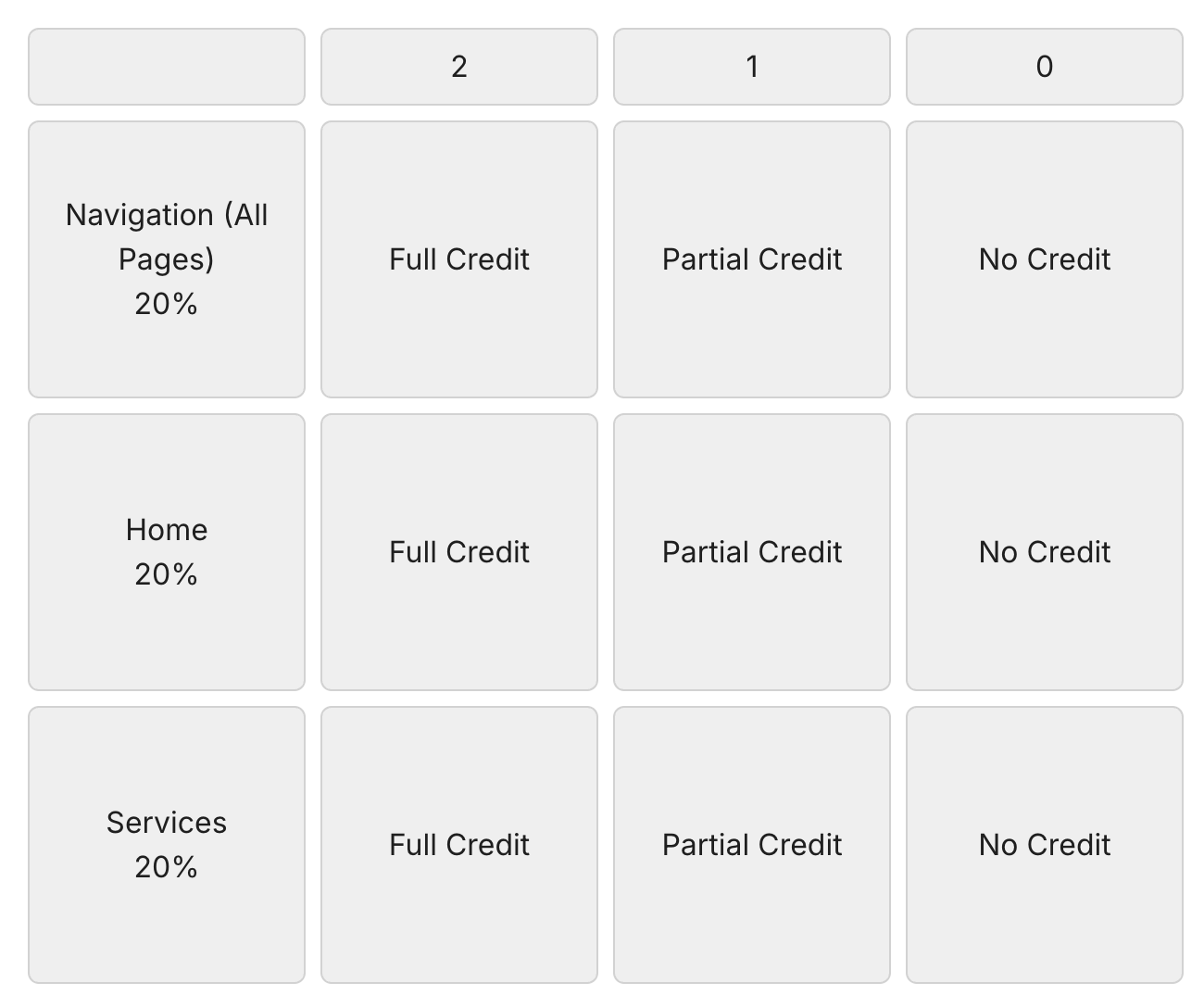
Use Codio’s teacher interface to grade with a Codio rubric or numeric score. This keeps submission and grading status in one place and avoids cross-referencing in Canvas. The typical flow is: open the student’s work, apply the rubric or score, and let LTI pass the result to the Canvas gradebook. This is generally the cleanest workflow for facilitators.
- What: Grading is performed directly in Codio’s teacher interface using a Codio rubric or a numeric score.
- Why: This approach keeps submission status and grading in a single system, reducing the need to cross-reference Canvas and minimizing facilitator overhead.
- Flow: Facilitators open the student’s work in Codio, apply the rubric or score, and allow the LTI integration to pass the grade back to the Canvas gradebook.
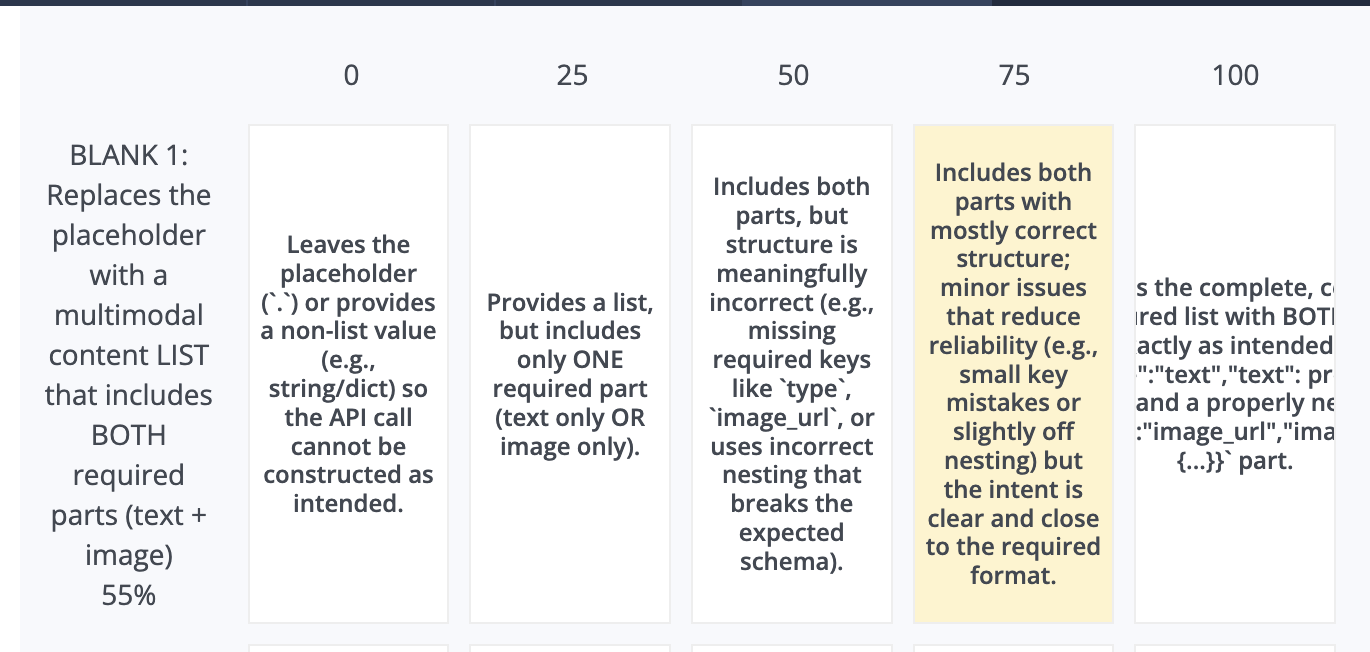
- Considerations: This is generally the cleanest and most efficient workflow for facilitators and supports Base Codio IDE–only teacher tools.
Canvas Rubrics / SpeedGrader (Very Specific, Not Recommended)
Use Canvas rubrics and SpeedGrader only in legacy or mixed sequences where a single Canvas rubric must cover both Codio and non-Codio items. Outside of those cases, this approach is not recommended because it requires cross-referencing Codio submissions against Canvas grading status, which adds extra steps and increases the chance of errors.
- Use only for: Legacy/mixed sequences where a single Canvas rubric must span non-Codio and Codio items
- Why not recommended: It introduces an inefficient workflow that requires facilitators to cross-reference Codio submissions with Canvas grading status, adding extra steps and increasing the risk of grading errors.
Access to Student Work & Assigning Grades
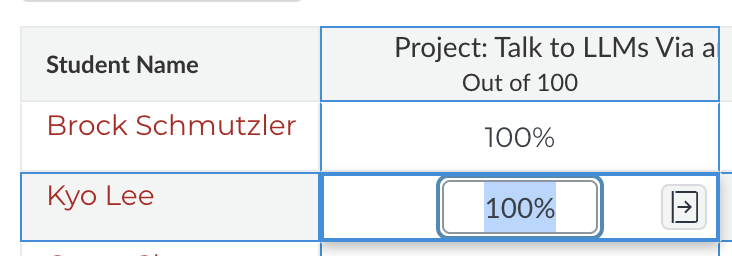
For Codio-based assignments, view and grade student work directly in the Codio teacher interface. This keeps submission and grading status aligned and reduces extra steps. Enter the student’s assignment from Codio, review the work, apply the rubric or score, and allow LTI to send the grade to Canvas. Avoid using Canvas SpeedGrader for Codio submissions, as switching tools can cause state mismatches and unnecessary clicks.
- Best practice: Grade in Codio for Codio work
Ancillary: Codio Teacher Resources (Base IDE only)
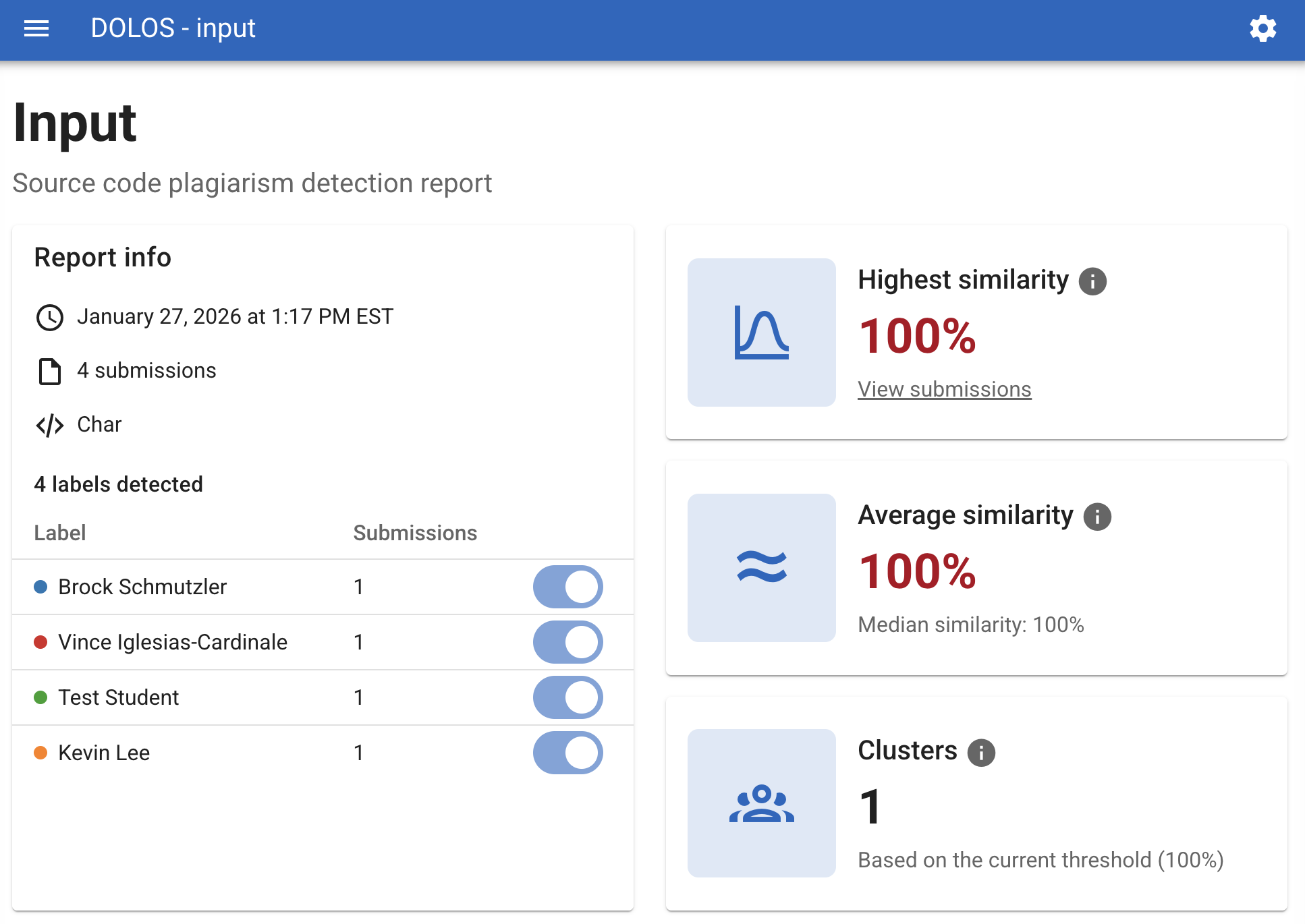
Codio provides additional teacher tools in the Base IDE, including plagiarism detection and code playback. These features help facilitators review how a solution was produced and identify potential integrity issues. Note that they are not available in Jupyter- or RStudio-based units.
- Plagiarism Checker: The plagiarism checker compares student submissions against peers and external sources to flag potential overlap.
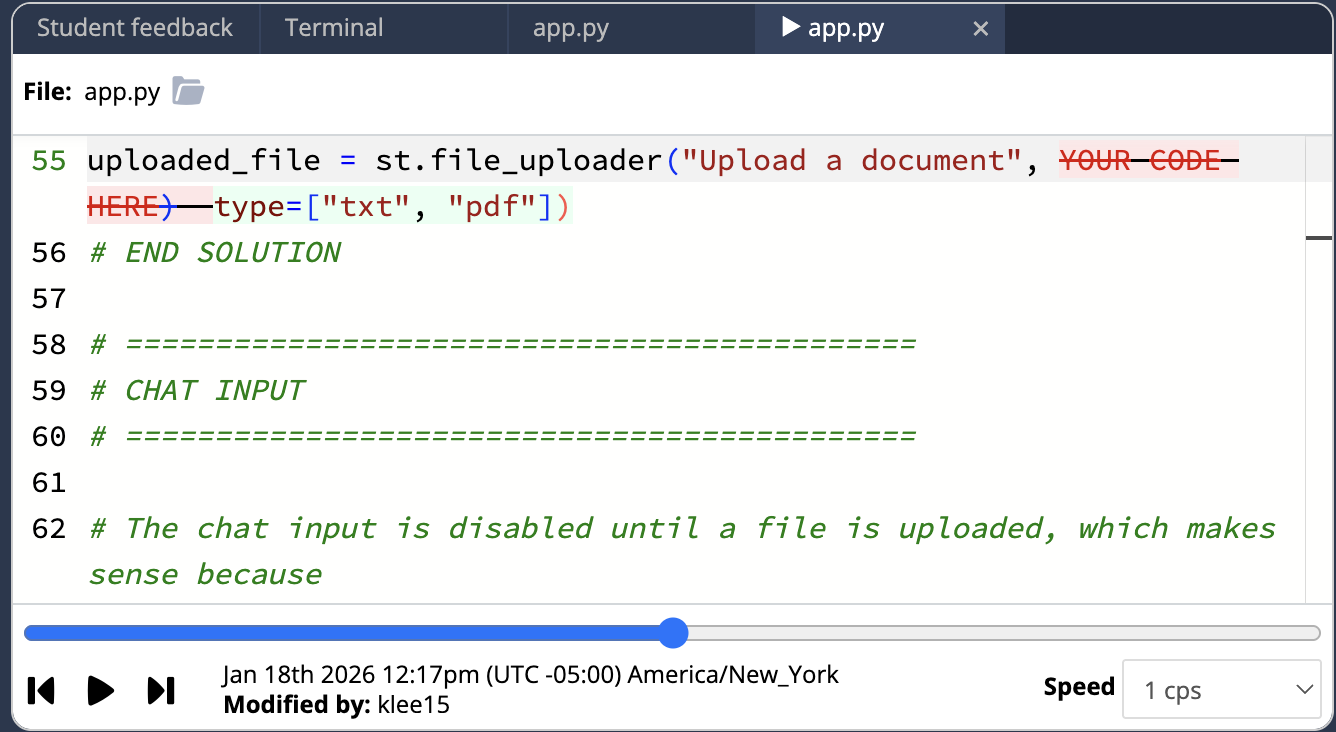
- Code playback: Code playback allows instructors to review a time-stamped replay of how a student’s code was written, not just the final result.
Auto Graded
Auto-grading vs. Auto-assessing
Before choosing tools, decide whether an activity should produce a score or simply give feedback. Auto-graded activities generate a score in Codio and pass it to Canvas; auto-assessed activities provide immediate feedback for practice but do not pass a grade. In the Codio IDE, this distinction comes down to configuration and wiring. You can attach a unit-level script to let students run self-checks (auto-assessing), and you can use an Advanced Code Test (ACT) to pass a grade when the student selects Mark as Complete. In Jupyter, keep auto-check cells separate from graded NBGrader cells so students always know what affects their score.
- Auto-graded: Produces a score and passes a grade to Canvas
- Auto-assessed: Produces feedback only (self-check); no grade pass
In Codio IDE: The difference comes from Canvas configuration and how artifacts are wired. A unit-level script can let students self-check (auto-assess). An ACT (Advanced Code Test) can handle grade passes when the student selects Mark as Complete.
In Jupyter: Keep separate auto-check cells (feedback only) and graded NBGrader cells.
Autograded — Quizzes
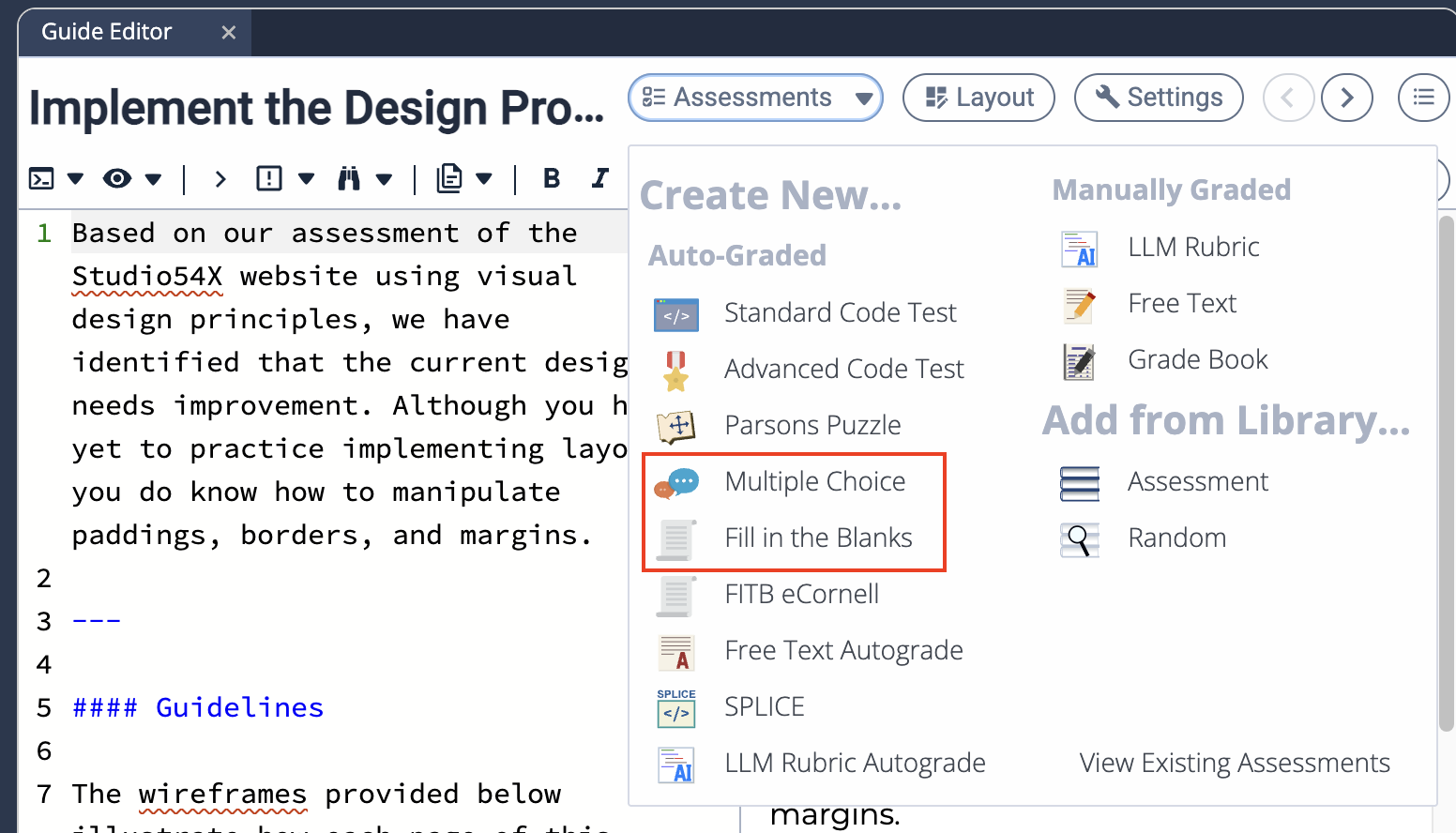
Quizzes are the simplest way to provide automated checks. Inside Codio, you can build multiple-choice items, use our customized fill-in-the-blank format that shows per-blank scores and highlights correct answers, and add free-text items that are evaluated by a grading script. These options work well for lightweight checks inside a Guide. If you prefer a Canvas-first experience, create a Canvas New Quiz and embed a Codio sandbox either in the quiz instructions or inside individual questions. Students can try code live in Codio and then answer in Canvas, which keeps the quiz workflow familiar while still giving access to a coding environment.
Codio Quizzes
- Types used: Codio quizzes support basic multiple-choice questions, a customized fill-in-the-blank format (used in eCornell Python courses) that provides per-blank scoring and highlights correct answers, and free-text questions that are evaluated using a grading script. Some formats also support structured content such as tables.
- Good for: These quizzes work best for lightweight, low-overhead checks embedded directly inside Codio Guides, where students can quickly verify understanding without leaving the coding environment.
Canvas New Quizzes (with Codio sandbox)
- Patterns: A Codio sandbox can be embedded either in the quiz instructions or within individual quiz questions, allowing students to experiment with code while completing the quiz. Choose this approach when you want a Canvas-native quiz experience but still need students to interact with live code in Codio before submitting their answers.
Autograded — IDE Patterns
Base Codio IDE — Advanced Code Tests (ACT)
In the Base Codio IDE, Advanced Code Tests (ACT) are the primary mechanism. An ACT runs tests, renders readable results in the Guide (including custom HTML/CSS reporters), and passes the grade to Canvas when the student marks the unit complete. We use this across several course families, including Python Boot Camp; CIS550s (with a mix of “Walker” home-grown and refit ExerPy-style items); JavaScript and Front-End Web (Jasmine and Mocha/Selenium); and CTECH/CAC series. If you need rich feedback formatting and a grade, confirm the ACT is wired to do both; if not, split the build into a self-check ACT and a separate grade-passing ACT.
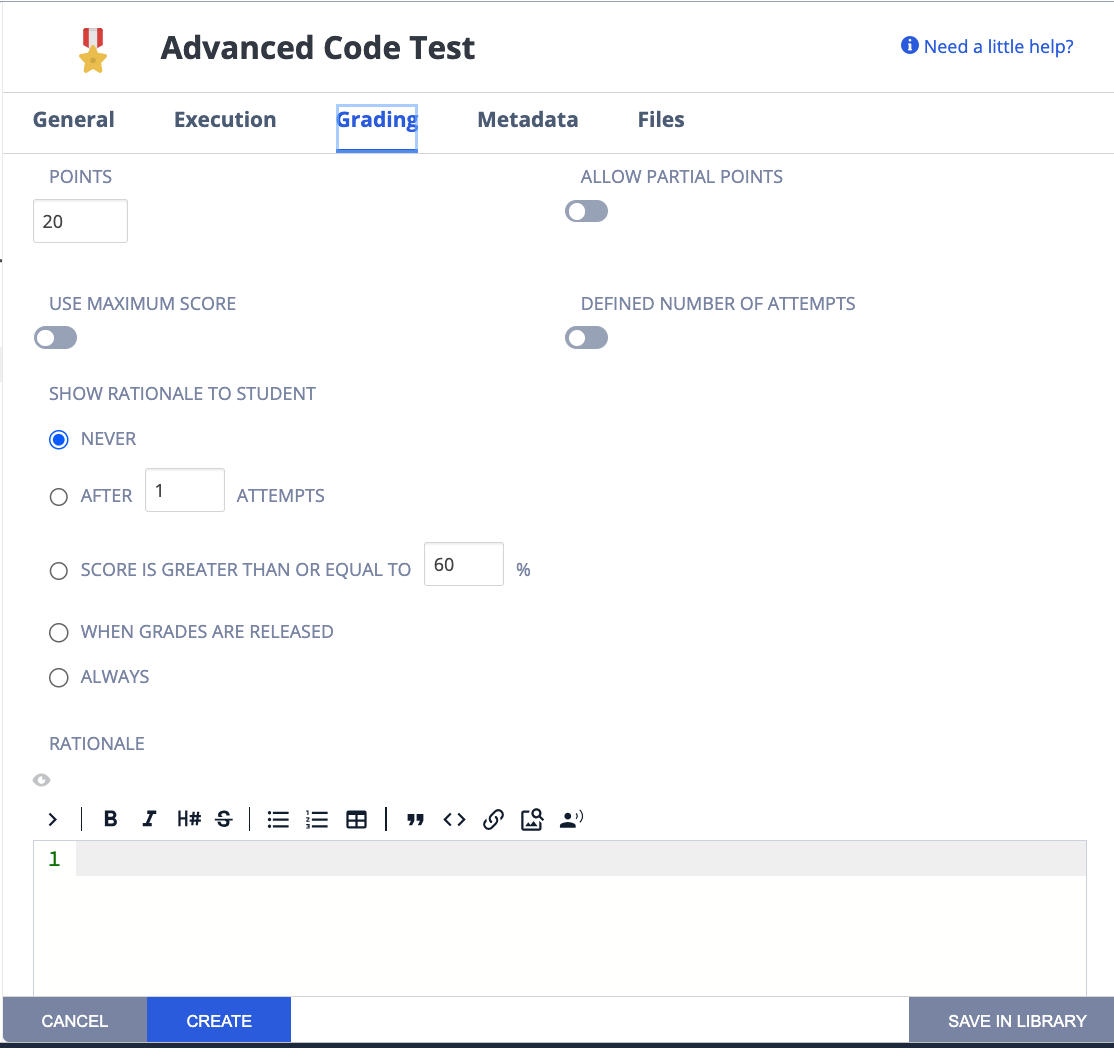
- What: Primary mechanism to run tests, render results, and pass grades
- Examples / Families: ACTs are used across several course families, with patterns varying by discipline and instructional need.
- In Python Boot Camp, units often include two distinct ACTs: one focused on generating detailed, student-facing output (often styled with custom CSS), and a second ACT responsible solely for sending the final grade to Canvas.
- In the CIS550s, multiple ACT styles are in use. Some units rely on "Walker White home-grown tests", while others use refactored ExerPy-style items that have been adapted to behave more like native Codio activities.
- In JavaScript and Front-End Web courses, ACTs typically leverage standard testing frameworks such as Jasmine or Mocha with Selenium. In at least one CIS560s unit, a bash-based ACT is used to execute and validate tests.
- This ACT pattern is also standard in the CTECH400s and CAC100s, where automated validation, clear feedback, and reliable grade passback are required.
- Authoring notes
- Use custom reporters for readable HTML/CSS feedback in the Guide
- If you need both polished feedback and grade pass, verify ACT wiring supports both; otherwise split assess vs. grade (see above under Python Boot Camp)
Jupyter
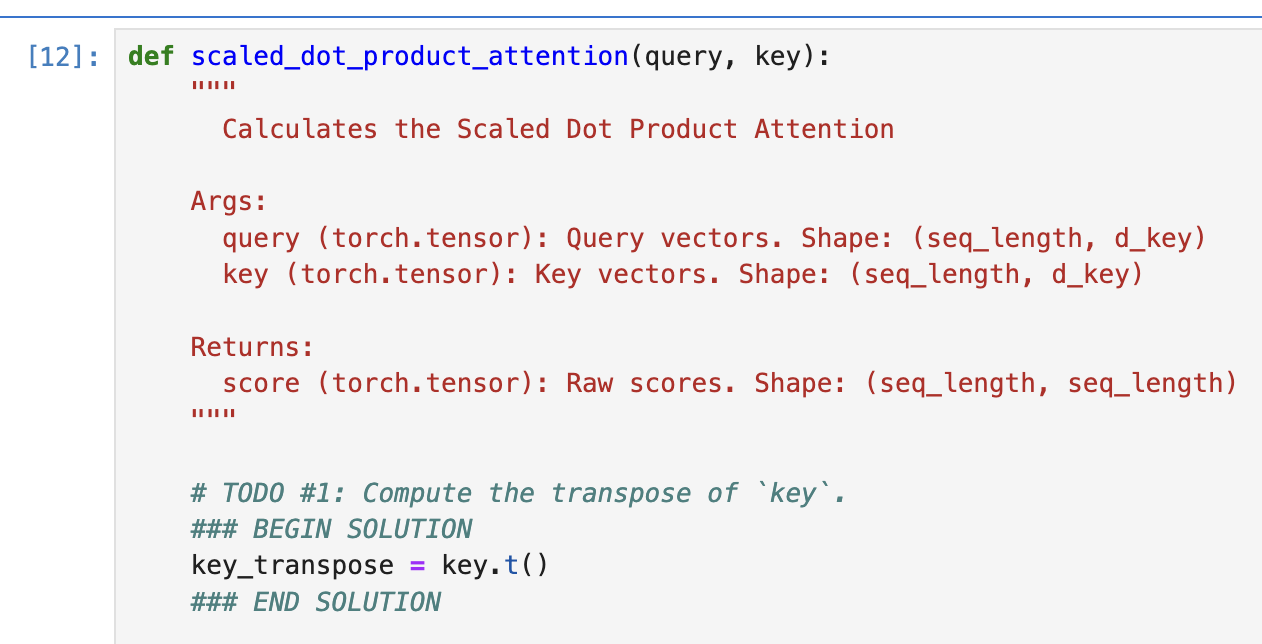
In Jupyter, use NBGrader for auto-grading and to hide solution code. Design notebooks so student edits happen inside clearly marked BEGIN // END SOLUTION cells. Avoid mid-line edits or mixing student code inside instructor blocks, which can break solution tagging and grading.
- NBGrader: Use NBGrader to auto-grade Jupyter notebooks and to keep instructor solution code hidden from students.
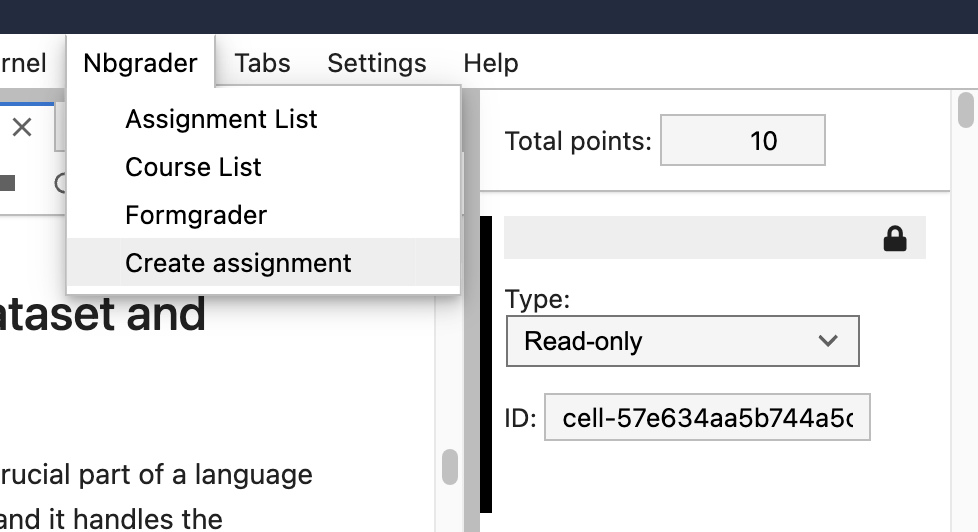
- Solution regions: Structure notebooks so all student work occurs within clearly marked BEGIN SOLUTION // END SOLUTION blocks, and avoid mid-line edits or mixing student code inside instructor blocks, as this can break solution tagging and grading.
RStudio
In RStudio, there is no NBGrader equivalent. The supported pattern is to place a Test Code button in the Guide. That button runs a comparison script that evaluates key variables, plots, or outputs against an instructor solution and returns results to the Guide. The grade pass still occurs through Codio’s assessment side, not through an in-IDE autograder.
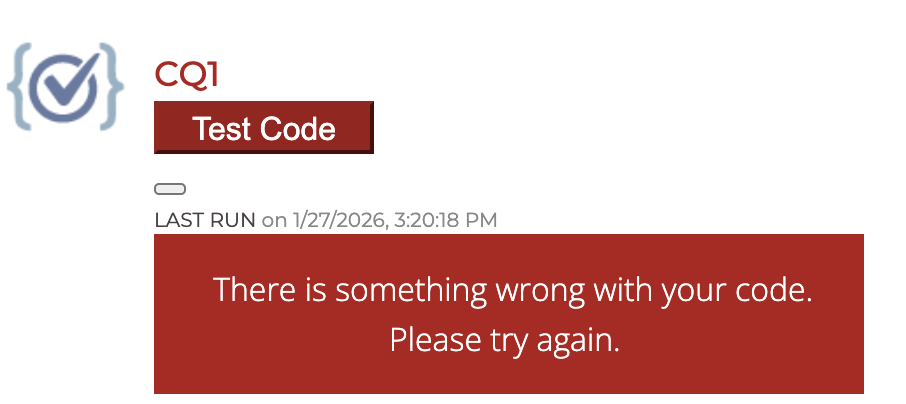
- No NBGrader equivalent: RStudio does not have an NBGrader-style tool for in-notebook auto-grading or solution hiding.
- Pattern: The supported approach is to use a Guide page with a Test Code button that runs an ACT-backed comparison script to evaluate key variables, plots, or outputs against an instructor solution.
- Codio “working on something?”: While alternatives to NBGrader have been discussed historically, there is currently no supported replacement available in Codio.
SQL (OmniDB)
For SQL activities, we use OmniDB in a separate browser tab. Students run their queries in OmniDB; Codio then re-runs those queries against a known dataset and compares the results to determine correctness before passing the grade. This comparison-script approach is used across several SQL-heavy labs.
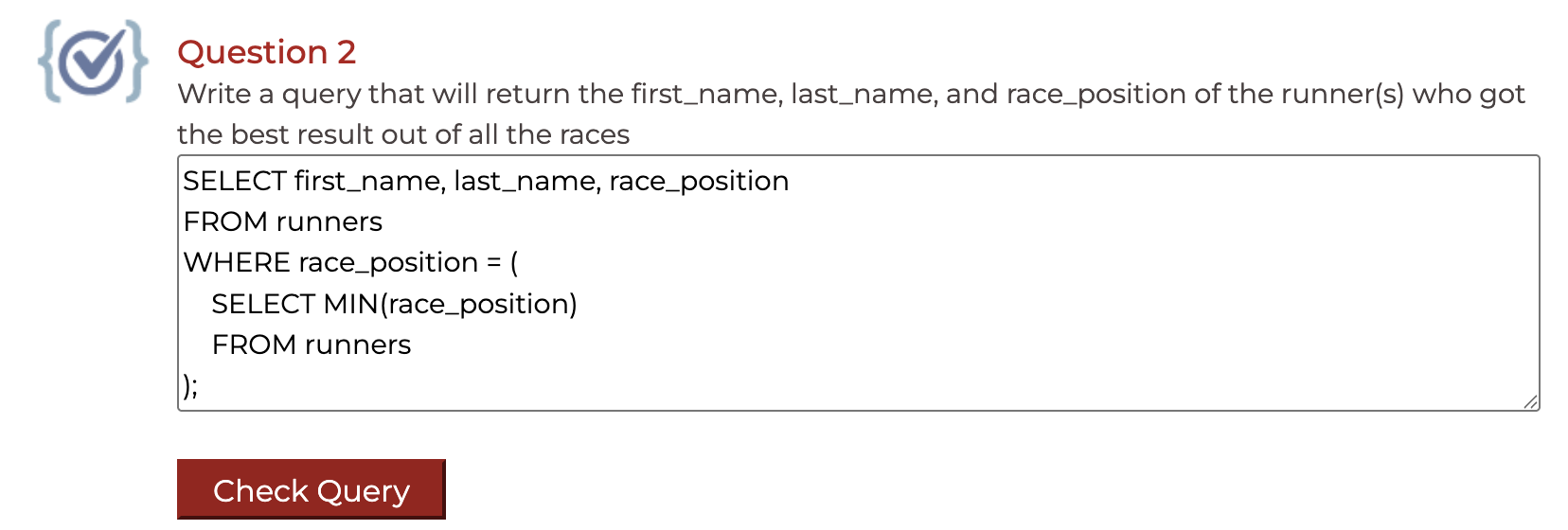
- Pattern: OmniDB opens in a separate tab; Codio script re-runs the query against a dataset and compares results
- Used for: SQL-heavy labs across multiple courses
Appendix
Combination Patterns
Some activities benefit from both automated checks and human judgment. In these cases, combine auto-grading for correctness with manual grading for qualities that automation cannot reliably assess (style, reasoning, documentation, naming, narrative explanation).
Example (CEEM620s): A Jupyter hybrid where NBGrader evaluates code cells automatically, and a Codio rubric is used to review written justification and code quality. NBGrader provides fast, consistent scoring on testable outputs, while the rubric captures the parts that require expert review.
Why this matters:
- Scalability: Auto-grading handles repetitive correctness checks across many students without adding grading time.
- Quality of feedback: Manual review focuses human effort where it’s most valuable—clarity, approach, and standards that are difficult to encode in tests.
- Fairness and clarity: Separating “does it work?” from “is it written well and explained?” makes criteria explicit for students and easier to defend.
- Operational reliability: If either side (auto or manual) has an issue, the other still provides usable signals; you’re not relying on a single mechanism.
Choosing & Designing (Checklist)
Use this checklist before you build or revise any Codio activity. It helps you match the grading pattern to your staffing, simplify facilitator workflows, and set clear expectations for students. Start by confirming who will grade and whether you need automation for scale, then plan the facilitator experience by keeping grading in Codio when the work lives in Codio. Give students self-checks where they help learning, and be explicit that self-checks don’t affect grades. Finally, account for environment constraints (Base IDE, Jupyter, RStudio, SQL), note any requirement to use a single Canvas rubric across mixed items, and include passback monitoring in your rollout so issues are caught early and documented.
Consideration | Guidance |
People | Do we have graders? If staffing is thin, lean auto-graded. |
Facilitator UX | Prefer Codio-side grading to keep submission/grade view unified. |
Student UX | Provide self-checks where helpful; clearly state that self-check ≠ grade. |
Environment constraints | Base IDE → teacher tools (plagiarism, playback). Jupyter → NBGrader. RStudio → Guide + comparison script. SQL → OmniDB + comparison. |
Rubrics | If leadership requires one Canvas rubric across mixed items, document the tradeoffs. |
Passback reliability | Add monitoring to the rollout plan; collect diagnostics if issues appear. |
Troubleshooting
Use this troubleshooting table to quickly diagnose common issues that arise during Codio builds and grading. Start by matching your symptom to the relevant row, then follow the listed steps in order—most problems resolve with basic linkage checks, a resync, or clarifying test expectations. If a passback issue persists after these steps, capture the requested details and open tickets with both vendors so resolution isn’t blocked.
Issue | Steps / Resolution |
Codio → Canvas passback fails | Confirm correct LTI link/assignment pairing; check for duplicates. Try a resync, then re-open/submit a test. Capture course, assignment, user, and timestamps. Open tickets with both vendors; include logs/screens. |
“Technically correct but failed tests” | Align grader acceptance criteria with instructions (contract tests). Provide sample inputs/outputs and note acceptable variants. |
NBGrader oddities | Re-tag cells; ensure hidden tests aren’t exposed; avoid mid-line edits. |
SpeedGrader confusion | If the submission lives in Codio, don’t grade in SpeedGrader. |
Open Items & Ownership
Task | Owner |
Update job aids for Codio manual grading | ITG |
Document/monitor passback issue pattern | ITG + Support |
Audit teacher-tool availability by environment (Base IDE vs. Jupyter/RStudio) | ITG |
Examples library: Link to exemplar units (Python Boot Camp, CIS550s, Front-End Web, CEEM620s hybrid, OmniDB labs) | ITG |